How to flip an image
This page opens with Vertical selected, the flip most image apps hide. Add a photo and it appears upside down right away; switch to Horizontal for a left-to-right flip.
- Choose, drop or paste one photo or a whole set (up to 30).
- Pick Vertical to flip the image upside down, Horizontal to flip it sideways, or Both for a half turn.
- Use Show original to compare, then Download. A set of photos comes back as one ZIP file.
Flip vertically or horizontally?
A vertical flip reflects the image across a horizontal line: the sky goes to the bottom, the ground to the top, but whatever was on the left stays on the left. A horizontal flip reflects it across a vertical line: left and right swap, top and bottom stay put. The second one is what people usually call a mirror image.
A quick test: look at any writing in the photo. After a horizontal flip it reads right to left. After a vertical flip it reads left to right but upside down, with every letter reflected. After both, it simply looks rotated.
Flipping is not rotating
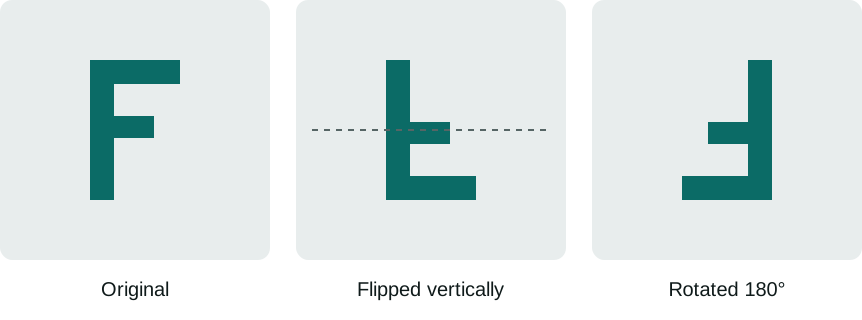
Photo apps usually offer rotate buttons, and a rotated photo is easy to mistake for a flipped one. They are different operations. Rotating turns the whole photo like a card on a table, so nothing is reversed. Flipping reflects it, so everything is reversed along one direction.
Two results look alike only in special cases. Flipping vertically and horizontally together equals a 180 degree rotation, which is why Both is the right fix for an upside-down scan. A single flip can never be undone by rotating; it can only be undone by flipping again.
Reasons to flip a photo
Some jobs where you flip a photo to fix it:
- Water and glass reflections. Flip a copy of a landscape photo vertically and place it under the original for a lake reflection, or use the Symmetry mode with the top half kept to do it in one step.
- Upside-down scans and photos. A scanned photo or document that went through the scanner the wrong way needs Both (a 180 degree turn), not just a vertical flip.
- Game sprites and icons. A character sprite or an arrow icon drawn facing right can be flipped to face left, so you only draw it once.
- Patterns and backgrounds. Flipped copies of a tile line up at their edges, which helps a pattern repeat without visible seams.
- Product and real estate photos. Flip a shot horizontally so a room or a product faces the same way as the rest of the set.
- Fun and art. An upside-down portrait photo is a classic drawing exercise: copying it upside down makes you draw the shapes you see instead of the face you expect.
Flip photo online without losing quality
The flipped photo keeps the original pixel dimensions. PNG files are lossless, so the flip changes nothing but the direction and the transparent background stays transparent. JPG and WebP are compressed again when saved, at quality 92 by default, which keeps them visually the same; slide the quality to 100 if you want the largest, most detailed file.
iPhone HEIC photos open directly and are saved as JPG. Everything runs in your browser, so a flip of a 24 megapixel photo takes a second or two on a laptop and there is no upload or download wait.
Flip many photos at once
Select several files in the picker or drop a batch of them onto the box. Every photo gets the same flip, the thumbnails let you check each one, and Download all saves them in a single ZIP with names like photo-flipped.jpg, so the originals are never overwritten. To flip a selfie so it reads the right way, the selfie page explains which direction to use.
Flip image FAQ
How do I flip an image upside down?
Add the photo above and keep Vertical selected, then Download. If the photo is a scan that is upside down, choose Both instead: that turns it 180 degrees so text reads normally again.
Is this image flipper free?
Yes, with no sign-up, no watermark and no limit. The flip happens in your browser, so your photos are never uploaded.
Can I flip a PNG with a transparent background?
Yes. The flipped file is saved as PNG again and keeps its transparency. The checkerboard in the preview shows the transparent areas.
Does flipping an image change its size?
No. The width and height in pixels stay exactly the same. Only very large images on phones may be saved smaller, and the tool tells you when that happens.
What is the difference between flip and mirror?
Mirror usually means a horizontal flip, the reversed view you see in a mirror. Flip can mean either direction, so this tool names them Horizontal and Vertical. See how to mirror an image on other apps.